Advanced SVG Editing: Pro Techniques for Paths, Masks & Complex Files
Introduction
You already know how to recolor an icon or swap out text in an SVG. This guide goes deeper — into the advanced techniques that separate basic edits from professional-grade SVG work: path manipulation, clipping masks, nested group management, and complex multi-file workflows.
Using SVGMaker's AI-powered SVG editor and its built-in manual SVG editor online, you can handle these pro-level tasks directly in your browser, with no Illustrator or Inkscape required. Describe a change in plain words and let AI apply it, or take direct control of every anchor point, layer, and group yourself.
The editor has added a lot since this guide first went live: 90+ built-in web fonts that embed into your export, Smart Snapping and alignment guides that work even while you edit paths, Group Editing that lets you step inside a group without breaking it, zoom-aware Rulers & Grid, a Live Layers panel with thumbnails, Magic Eraser, and one-click Download Selected Objects.
Along the way, you'll learn to edit selected SVG objects online and export only the pieces you need, without ever leaving your browser.
Step-by-Step Tutorial: Editing SVGs on SVGMaker
Let's walk through the complete process of editing SVGs using SVGMaker's intuitive AI-powered editor.
1Uploading Your SVG
- Visit SVGMaker.
- Click Upload SVG (or drag-and-drop your file).
- The editor loads your graphic immediately, showing a preview, layer structure, and editing panel.
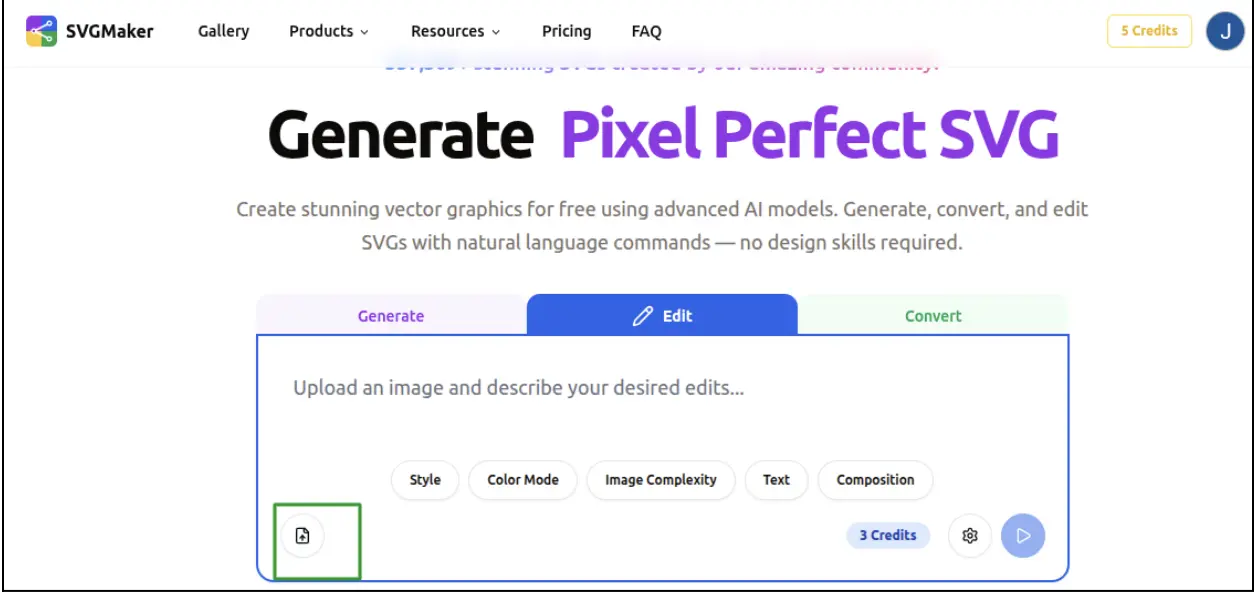
SVGMaker supports icons, logos, illustrations, and most standard vector exports.
2Using the AI Prompt-Based Editor
One of the biggest benefits of SVGMaker is that you don't have to do everything manually. The AI prompt editor understands natural-language commands, making it the easiest way to edit SVG online.
Change Color(s) of Shapes or Strokes
Type prompts like:
- "Change the blue shapes to #FF5722."
- "Update all black strokes to white."
- "Recolor the entire SVG using a pastel palette."

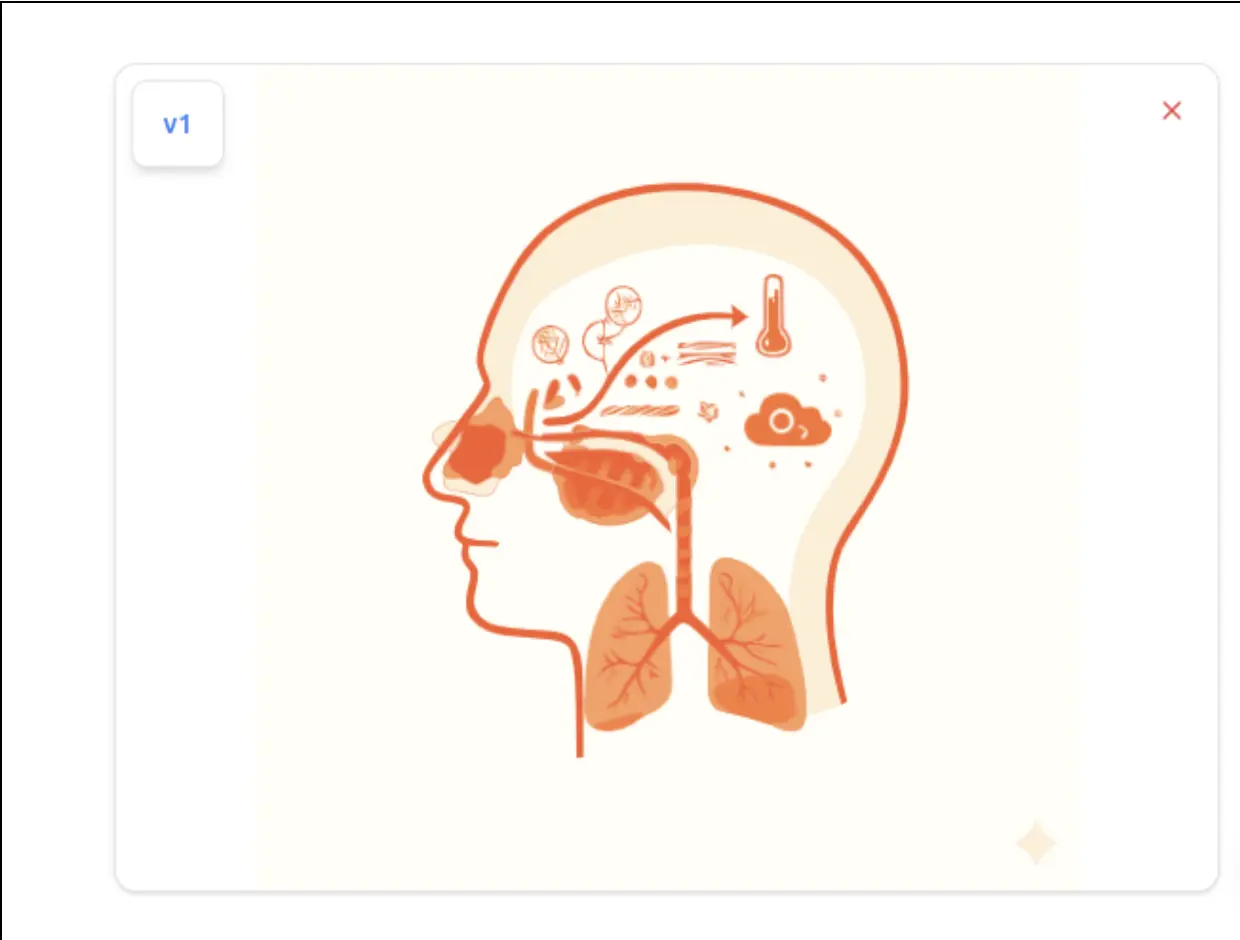
AI identifies paths, fills, and strokes, even inside complex groups and applies the change instantly.
Edit Paths – Move, Reshape, or Simplify
Paths are the backbone of every SVG. With SVGMaker, you can modify them without needing node-editing expertise.
Try prompts such as:
- "Simplify all paths by 20%."
- "Round the corners of the main shape."
- "Move the top-left circle slightly to the right."
- "Make the icon look more symmetrical."
The SVG path editor intelligently adjusts curves, coordinates, and shapes.
Modify, Add, or Remove Text
Editing text inside an SVG is notoriously annoying in many traditional tools (especially when fonts are missing).
SVGMaker handles it gracefully:
- "Change the headline text to 'Summer Market'."
- "Remove all text from this SVG."
- "Add a label below that reads 'Limited Edition'."
If needed, you can also manually edit the text layer in the visual SVG Editor for precise, non-AI control over every text element.
Restyle Text with Built-in Web Fonts
Once the text says the right thing, the visual SVG Editor controls how it looks. Select any text element and open the font family dropdown to restyle it with 90+ built-in web fonts, each rendered in a live preview so you can compare typefaces before committing.
From there you can fine-tune:
- Font family: pick from 90+ web fonts shown in a live preview, with search to find one fast
- Size, weight, and style: scale, bold, or italicize without distorting spacing
- Color and letter spacing: match your brand while keeping the layout clean
The web font you choose embeds directly into your exported SVG, so the "missing font" problem disappears and your text looks identical on every device, even where the font isn't installed. Custom-font text also converts to vector paths while staying editable through a round-trip, so you keep the exact look without permanently locking the text.
3Fine-Tune by Hand in the SVG Editor
AI gets you most of the way. For exact placement and clean structure, open the file in the SVG Editor and work directly on the canvas.
- Smart Snapping & Alignment: snap to the grid or to nearby objects with magnetic guides, and see equal spacing as you drag. Snapping also works while you edit paths, so anchor points and Bézier handles lock into place.
- Group Editing: double-click a group to step inside and edit its children. When you exit, the group rebuilds itself untouched, so you never have to break the structure to fix one shape.
- Rulers & Grid: zoom-aware rulers and a grid you can toggle keep measurements accurate at any zoom level.
- Live Layers Panel: a thumbnail for every object. Select something on the canvas and its layer scrolls into view. Drag to reorder, double-click to rename, and expand groups into a tree.
- Magic Eraser: click an area to remove unwanted elements or backgrounds without tracing around them.
- Boolean Operations & Copy Style: combine, intersect, or subtract shapes, and copy fills, strokes, and effects from one element to others.
- Layer Locking: locked objects stay locked across tool switches, undo/redo, and paste.
4Edit Through Conversation with the AI Design Agent
The AI Design Agent treats editing as a conversation, not a single command. It remembers every turn in the chat, so you can refine step by step: "make the badge rounder", then "use our brand teal", then "give me a version without the tagline". Each request builds on the last result instead of starting over.
- It looks before it edits. The agent can view your image and measure its real colors, so "match the blue in the logo" uses the actual hex value, not a guess.
- Every edit is a new version. The original stays untouched in the chat, so you can compare versions or go back to any earlier one.
- It picks the right tool for the job: redrawing, background removal, turning a raster into an SVG, cleaning up SVG code, or resizing. You don't choose a tool first.
- Brand kits keep it on brand. Attach a brand kit and every edit in that chat follows your colors and assets.
- It hands off to the manual editor. Click the pencil on any result to open it in the SVG Editor, fine-tune it by hand, and save it straight back into the chat as a new version.
Use the agent for direction and big changes, and the manual editor for the last few pixels.
5Saving or Exporting Your Updated SVG
When your edits are ready, click:
- Download SVG – keeps vector quality
- Export PNG / JPG / WebP – ideal for web graphics
- Download selected objects – export just the shapes you've selected instead of the whole canvas, perfectly cropped to their own bounds
- Copy SVG code – convenient for developers
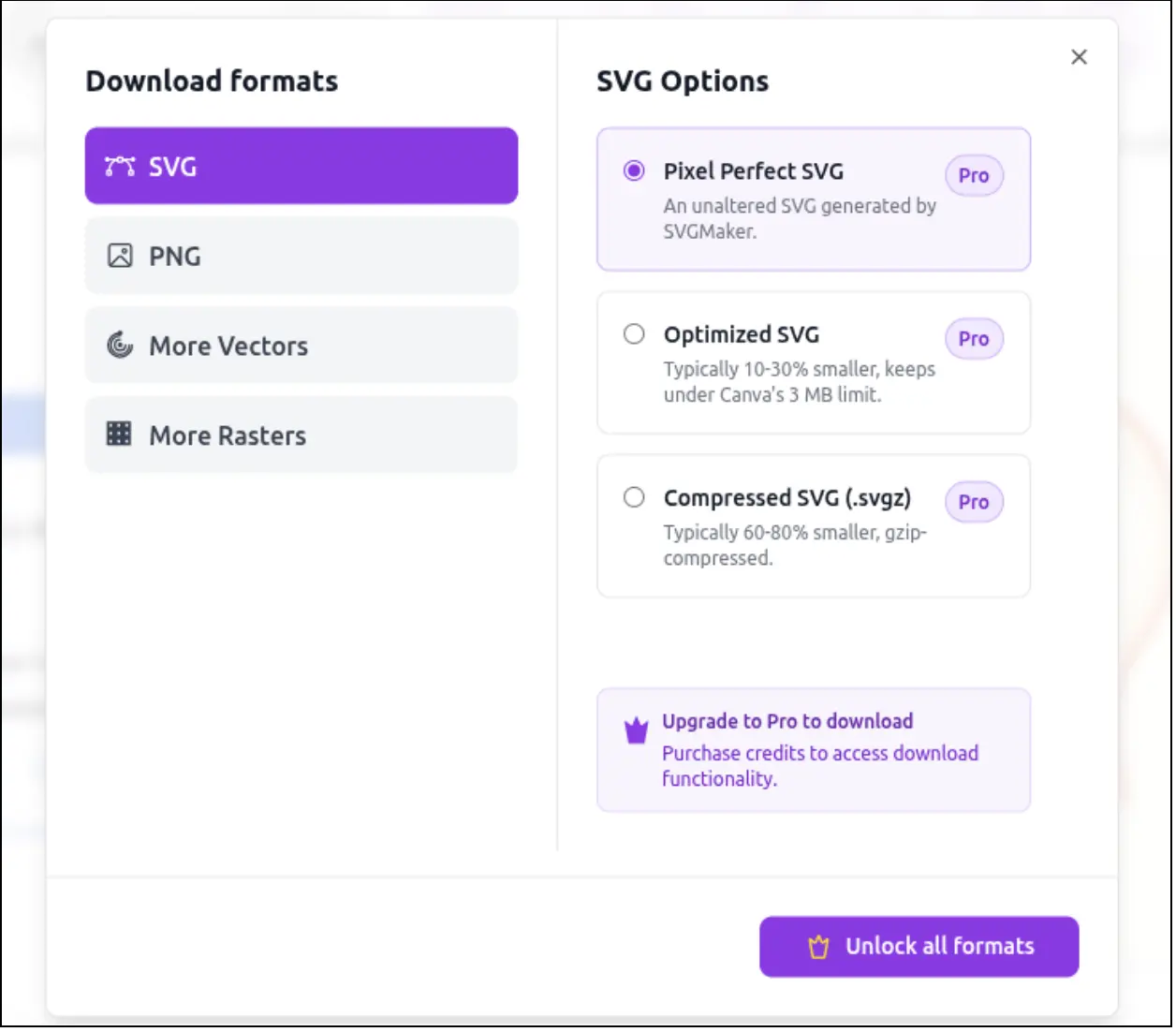
SVGMaker preserves your layer order and keeps the code clean. And when you only need one piece of a busy design, select the shapes, icon, or text you want and use Download selected objects to export just that selection, cropped to its own bounds, instead of slicing up the full canvas afterward.
Best Practices for Clean SVG Editing
To get the best results:
- Preserve layer names for clarity
- Avoid unnecessary grouping—it can interfere with color changes
- Keep path data clean (AI simplification helps with this)
- Use consistent color formats (hex is best for web + crafters)
- Remove background using svg file background remover
Following these guidelines ensures your output works well across browsers, Cricut software, and web apps.
Tips, Tricks & Advanced Uses
Using Style Presets
If SVGMaker offers built-in presets (like flat style, neon, outline-heavy, etc.), you can instantly re-theme graphics. Prompts like:
- "Apply a minimalist outline style."
- "Convert this icon to a 3D gradient look."
help rebrand assets fast.
Fixing Common Problems
Color Not Updating?
Some SVGs use:
- group-level styles
- CSS classes
- nested <g> elements
- opacity or gradient masks
Try:
- "Force replace all fill colors with #000000."
- Manually ungroup layers.
Grouped or Nested Paths
If editing seems restricted, use:
- "Ungroup all elements."
- "Flatten the SVG."
This exposes hidden layers and fixes many color or path issues.
For Developers: Using the SVGMaker API
Web developers or automation engineers can use the SVGMaker API to:
- programmatically edit SVG colors
- batch-convert icons
- clean + optimize SVG code
- dynamically generate variations
This is perfect for large icon libraries or product personalization workflows.
Comparison With Other Online SVG Editors
There are several tools in the "edit SVG online" space, including:
| Feature | Fotor's SVG Editor | Pixelied's SVG Editor | Boxy SVG |
|---|---|---|---|
| Color Changes | Simple color changes | User-friendly interface | Precise manual color and gradient controls |
| Text Editing | Basic text replacement | Helpful for beginners | Full Google Fonts library, embedded on export |
| Focus | More focused on general graphic design | Limited advanced path or multi-layer control | Full manual editor in the browser or as a desktop app; no AI editing |
| Best For | Great for small tweaks but lacks deep path editing or AI assistance | Useful if you want quick visual tweaks—but not ideal for complex shapes | Intermediate users who want precise manual control without installing Inkscape |
Why SVGMaker is Often a Better Choice
Choose it when you need:
- AI-powered editing (change colors, simplify paths, restyle graphics)
- An AI Design Agent that generates, edits, and converts SVGs in one seamless workflow while preserving your brand’s visual style, theme, and consistency across every asset
- Precise manual tools: smart snapping, group editing, rulers, and a live layers panel
- Rich text styling with 90+ built-in web fonts that embed into your export, so typography renders correctly on every device
- Developer tools + API access
- Automatic cleanup of messy SVG code
- True vector editing, not just pixel-based filters
- Export flexibility for craft machines, websites, or apps
Simpler editors may be enough for very basic color swaps. But SVGMaker shines when users need precision and automation.
See how it stacks up in our roundup of the best AI SVG editors.
Limitations & Considerations
While powerful, it's good to know:
- Credit costs / pricing may apply for heavy usage or advanced AI edits
- Extremely complex SVGs (hundreds of nested paths) may load more slowly
- Some CSS-styled SVGs may need flattening for reliable color updates
- When exporting to PNG/JPG, check final size for optimal sharpness
- Animated or filter-heavy SVGs may have partial compatibility
Use Cases & Real-World Examples
Icon and Web UI Design
Quickly recolor or restyle icons to match a website's branding.
Crafting (Cricut, Silhouette)
Clean SVG paths = cleaner, smoother cuts.
Easily recolor, simplify, or merge shapes.
Laser Cutting (LightBurn, Glowforge & xTool)
Laser cutters need closed paths and clean lines. Simplify paths, merge overlapping shapes, and remove stray nodes so your cut and engrave layers import cleanly into LightBurn, Glowforge, and xTool.
Print on Demand
Fast color variations of graphics for shirts, stickers, or merch.
Mini Case Study
A small business owner wants to recolor a black-and-white logo for a spring promotion. Using SVGMaker, they:
- Upload the logo SVG
- Type: "Change all black fills to pastel green."
- Use: "Add curved text below: 'Spring Edition'."
- Export as SVG + PNG
Total time: under 2 minutes, no Illustrator needed.
Frequently Asked Questions
1. How do I edit an SVG file online for free?
You can edit an SVG file online for free using tools like SVGMaker, which lets you upload your SVG and make instant edits such as changing colors, modifying paths, or updating text. Many basic edits can be done without paying or installing any software.
2. How do I modify an SVG file?
To modify an SVG, open it in an online SVG editor (e.g., SVGMaker), then adjust fill colors, strokes, text, or paths. Most editors also let you ungroup layers, move shapes, and export a cleaned-up version when you're done.
3. What program can I use to edit an SVG file?
You can use both online and desktop programs, including:
- SVGMaker (AI-powered online editor)
- Figma
- Inkscape
- Adobe Illustrator
- Pixelied or Fotor (basic online editors)
If you want fast, browser-based editing with no installation required, online tools are the easiest.
4. What is the best SVG editor for beginners?
For beginners, SVGMaker is one of the best SVG editors because its AI commands let you edit colors, paths, and text without needing advanced design skills. Tools like Pixelied or Fotor are also beginner-friendly for simple edits.
5. How to edit SVG files online free?
Visit an online editor such as SVGMaker, upload your SVG, make your edits (recolor, resize, reshape, or adjust text), and then download your updated file. No software installation is required, and basic edits are free.
6. How to edit SVG files online free with no sign-up?
Platforms like SVGMaker allow you to edit SVG files online for free with no account or sign-up required for basic operations. Just upload your file and start editing immediately.
7. What is the best free SVG editor?
The best free SVG editor depends on your needs:
- SVGMaker - Best for AI-assisted editing, path cleanup, and downloading selected objects from your design
- Inkscape - Best free desktop solution with advanced vector tools
- Figma Free Plan - Great for collaborative edits
If you want the easiest and fastest experience in your browser, SVGMaker is the top choice.
8. Can I edit an SVG image without losing quality?
Yes, you can edit an SVG image without losing quality because SVG is a vector format – whether you use an svg image editor online like SVGMaker the graphic is made of mathematical paths, not pixels, so scaling, rotating, cropping, or recoloring never causes blurriness or pixelation.
Conclusion
SVGMaker makes it easier than ever to edit SVG online, from changing colors and paths to cleaning up code or reshaping graphics. Whether you're a crafter, web designer, developer, or hobbyist, this online SVG editor removes the friction of traditional tools and lets you create exactly what you need. Want to compare more options? See our list of the best AI SVG editors in 2026.
Ready to try it?
Visit SVGMaker and edit your first SVG for free.
You can also explore our API if you want automated SVG manipulation for apps or workflows.