SVGMaker vs Canva, Figma and Adobe: In Depth Feature and Output Comparison 2026
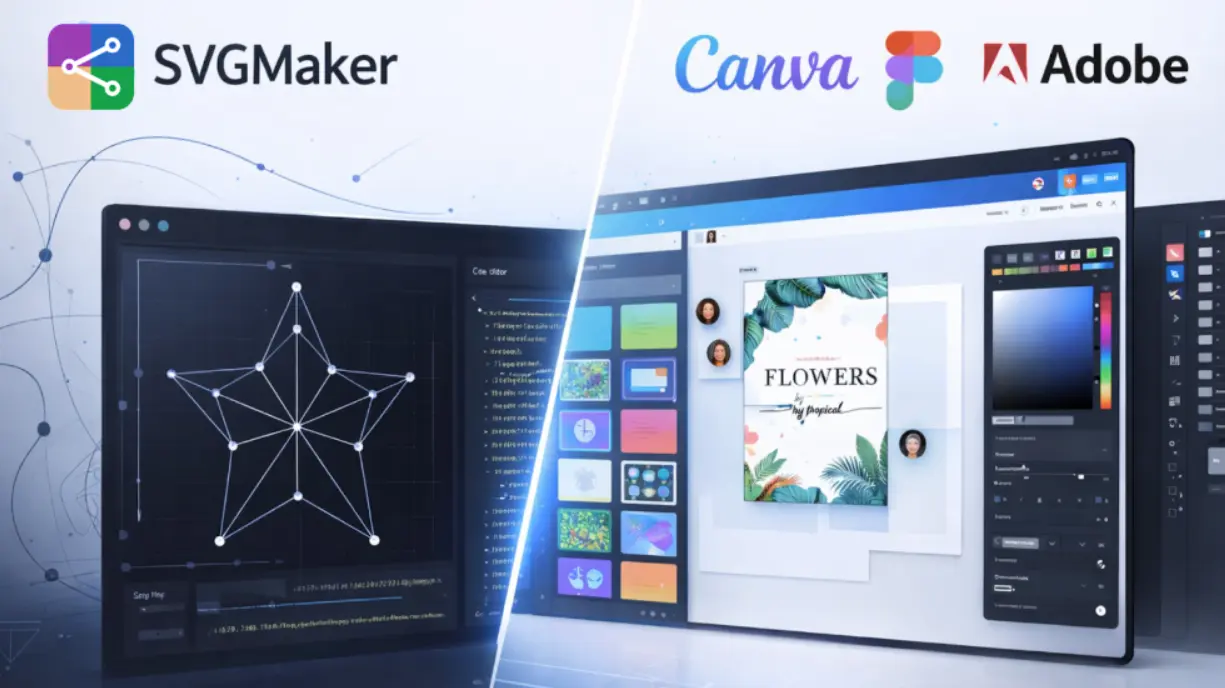
Designers today have more tools than ever. Some are built specifically for fast SVG creation using AI. Others are full design suites meant for everything from social graphics to product interfaces. This is why tools like SVGMaker are often compared with platforms such as Canva, Figma, and Adobe.
The comparison makes sense. All of these tools can produce SVG files. But they are built with very different goals in mind. This article focuses on real use cases and real output rather than feature lists. The goal is to help you decide which tool fits your workflow best.
Key Takeaways
| Need | Best Choice | Why |
|---|---|---|
| Clean SVG structure | SVGMaker | Minimal nodes and logical paths |
| Fast SVG generation | SVGMaker | AI assisted workflow speeds up creation |
| Marketing visuals | Canva | Templates and ease of use |
| Team collaboration | Figma | Real time editing and feedback |
| Deep illustration control | Adobe | Advanced manual design tools |
| Web performance focused SVGs | SVGMaker | Smaller file size and cleaner code |
| Beginner friendly design | Canva or SVGMaker | Low learning curve |
| Professional vector precision | Adobe | Full control with manual optimization |
Why AI First SVG Tools Are Compared With Full Design Suites
AI first SVG tools focus on one thing. Creating clean scalable vector graphics quickly. Full design suites focus on flexibility. They support many formats, layouts, and collaboration needs.
When users compare these tools, they are usually asking one question. Which one gives me the SVG I actually need without extra work. The answer depends on how you plan to use the SVG.
How This Comparison Is Structured
Instead of listing features, this comparison looks at common design tasks.
- Logo creation and brand assets
- SVGs for web performance
- Rapid ideation and early concepts
- Collaborative design and team workflows
Each section explains how the tools perform in practice and what the final SVG output looks like.
Logo Creation and Brand Assets
Logos require precision. Clean edges matter. So does scalability and easy recoloring.
SVGMaker is designed for this exact use case. It generates SVGs with fewer unnecessary paths and clearer structure. This makes logos easier to reuse across websites and marketing materials. You can generate professional logos using AI-powered workflows that maintain clean code structure.
Canva works well for quick logo concepts, especially for non designers. However, exported SVGs often include extra structure that is not ideal for reuse or editing later.
Figma gives strong manual control and is excellent for product teams. Logo creation is possible, but it requires more hands-on work.
Adobe offers the deepest control for logo design. It is powerful, but it also requires experience and time. According to industry research, professional designers spend an average of 10-20 hours on custom logo projects in traditional software.
For logos that need to stay clean and scalable, SVGMaker and Adobe are the strongest options, depending on how much control you need. Learn more about creating scalable vector logos for your projects.
SVGs for Web Performance
SVGs are popular on the web because they load fast and scale perfectly. But this only works when the SVG code is clean. Research from HTTP Archive shows that optimized SVGs can be 50-80% smaller than unoptimized versions, directly impacting page load times.
SVGMaker focuses on producing lightweight SVG files with logical grouping. This makes them easy to inline in HTML and style with CSS. Our SVG optimization techniques help ensure your graphics load quickly.
Canva SVG exports tend to be heavier. They often work visually but include extra elements that increase file size.
Figma exports SVGs that are generally usable for web projects, but they may require cleanup depending on the design complexity.
Adobe allows precise optimization, but it depends entirely on how the designer prepares the file. You can learn more about compressing and cleaning SVG code for optimal performance.
For developers and performance focused teams, SVGMaker produces web ready SVGs with less cleanup.
Rapid Ideation and Concept Design
Speed matters during early ideation. You want to explore ideas without committing too much time.
SVGMaker excels here because AI generation allows you to create multiple SVG concepts quickly and refine them. Our AI-powered generation feature enables designers to iterate faster than traditional methods.
Canva is also strong for rapid ideation thanks to templates and drag and drop editing.
Figma supports ideation through collaboration, but it is more manual.
Adobe is the slowest for ideation unless you are already highly skilled.
If speed is your priority, SVGMaker and Canva offer the fastest paths from idea to visual. You can generate SVGs from text prompts in seconds.
Collaborative Design and Team Workflows
Collaboration changes the equation.
Figma leads in this area. Real time editing, comments, and version control make it ideal for teams.
Canva also supports collaboration, especially for marketing teams.
Adobe supports collaboration through shared libraries and cloud documents, but it can feel complex.
SVGMaker is more focused on individual creation. It works best when one person is responsible for generating and refining SVG assets before handing them off. However, our API integration allows teams to incorporate SVG generation into their existing workflows.
For teams designing interfaces together, Figma is the strongest choice.
Real World SVG Output Analysis
| Tool | SVG Output Quality | File Size | Node Structure | Editability | Expandability |
|---|---|---|---|---|---|
| SVGMaker | Clean and precise | Small | Minimal and well structured | Easy to edit paths and colors | Remains sharp at any size |
| Canva | Visually acceptable | Larger | More nested elements | Harder to edit individual paths | Scales visually but structure is heavy |
| Figma | Solid output | Medium | Node count varies by design | Editable but may need cleanup | Scales well with refinement |
| Adobe | Excellent with effort | Varies | Depends on manual optimization | Fully editable | Excellent when optimized |
To compare output quality, consider a simple test case. A flat icon with two colors and simple geometry.
SVGMaker produces a clean SVG with minimal nodes and clear paths. The file size is small and scaling remains sharp at any size. You can test this yourself with the online SVG editor.
Canva produces a visually similar icon, but the SVG includes more nested elements. File size is larger and editing individual paths is harder.
Figma exports a solid SVG, but depending on the design, node count can increase quickly.
Adobe produces excellent output, but only if the file is optimized manually.
For users who care about SVG structure and not just appearance, SVGMaker offers consistent results.
SVG Output Quality and Editability Comparison
SVGMaker focuses on clarity. Paths are easier to select. Colors are easy to change. Scaling works without distortion. Our advanced editing features make post-generation modifications straightforward.
Canva prioritizes visual results. Editing the SVG outside Canva can be challenging.
Figma offers flexibility, but exported SVGs may need cleanup for reuse.
Adobe gives full control, but it requires knowledge to achieve clean output.
Learning Curve and Accessibility
SVGMaker has a short learning curve. Most users can create usable SVGs quickly. Check out our quick start guide to get started.
Canva is also beginner friendly, especially for marketing teams.
Figma requires some learning but is approachable.
Adobe has the steepest learning curve and is best suited for experienced designers. According to a 2024 survey by Creative Bloq, new users report taking 3-6 months to become proficient in Adobe Illustrator.
Pricing Transparency and Cost Considerations
SVGMaker offers a clear free tier and paid plans based on usage (credit-based).
Canva uses a freemium model with many locked assets.
Figma pricing scales with team size.
Adobe uses subscription pricing that can be expensive for individual users, with the Creative Cloud All Apps plan starting at $59.99/month as of 2026.
Cost matters most when tools are used regularly.
When SVGMaker Is the Better Choice
SVGMaker is the better choice when your priority is clean editable SVG output. It works well for logos, icons, web graphics, and rapid concept generation. It is especially useful when you want AI assistance without the complexity of full design software.
Perfect use cases include:
When Canva Figma or Adobe Make More Sense
Canva is better for marketing visuals and templates.
Figma is best for collaborative product design.
Adobe is ideal for advanced illustration and complete creative control.
Each tool excels in a different context.
Decision Framework
Choose SVGMaker if you need fast clean SVGs that are easy to edit and reuse.
Choose Canva if you need quick visual content with minimal setup.
Choose Figma if you work in a collaborative design team.
Choose Adobe if you need maximum creative depth and control.
Frequently Asked Questions
1. Why do people compare SVGMaker with Canva, Figma, and Adobe?
They are compared because all of them can produce SVG files, but they are built for different workflows. Some focus on AI driven SVG creation, while others are full design suites meant for broader creative tasks.
2. Is SVGMaker a replacement for Canva Figma or Adobe?
No. SVGMaker is a focused tool for creating clean and editable SVGs. Canva, Figma, and Adobe are broader platforms that handle layouts, templates, and complex design systems. The right choice depends on what you need to create. Learn more about comparing AI SVG generators.
3. Which tool produces the cleanest SVG code?
SVGMaker generally produces cleaner and lighter SVG code with fewer unnecessary nodes. Full design suites can also produce high quality SVGs, but the output often depends on manual optimization.
4. Which tool is best for logo creation in SVG format?
For fast and clean SVG logos, SVGMaker works well. For deep brand illustration and advanced control, Adobe is often preferred. Canva and Figma are useful for quick concepts and collaborative workflows.
5. Are Canva SVG exports suitable for web use?
Canva SVGs usually work visually on the web, but they may include extra structure that increases file size. For performance focused websites, SVGs often require cleanup before use. You can use our SVG converter to optimize files from other sources.
6. Is Figma better for teams working on SVGs?
Yes. Figma is designed for collaboration, making it ideal for teams that need real time editing, feedback, and version control while working on design assets.
7. Which tool has the lowest learning curve for beginners?
Canva and SVGMaker are generally the easiest to start with. Canva focuses on templates, while SVGMaker focuses on SVG creation with AI assistance. Adobe has the steepest learning curve. Try our free SVG templates for students to get started.
8. Can SVGMaker handle professional projects?
Yes. SVGMaker is suitable for professional use cases such as web graphics, icons, logos, and UI assets where clean SVG structure and editability matter. Review our model comparison to understand the AI capabilities.
9. Why does SVG file size matter?
Smaller SVG files load faster, are easier to maintain, and perform better on websites. Clean structure and fewer nodes help improve both performance and editability. According to Google's Web Vitals research, optimized images can improve Largest Contentful Paint (LCP) by up to 75%.
10. Which tool should most users choose overall?
There is no single best tool for everyone. Choose SVGMaker for clean and scalable SVGs, Canva for quick marketing visuals, Figma for collaborative design, and Adobe for advanced illustration and full creative control. You can also explore whether to replace Illustrator with AI SVG generators for your specific needs.
Conclusion
There is no single best design tool. The right choice depends on what you need to produce.
SVGMaker stands out as a focused solution for SVG creation. It delivers clean output, strong editability, and fast AI driven workflows. Canva, Figma, and Adobe remain excellent choices for broader design needs.
If your work depends on scalable vector graphics that perform well and stay easy to manage, SVGMaker is worth exploring. Start with the free version, test it on real projects, and upgrade only when your workflow demands more control and scale.
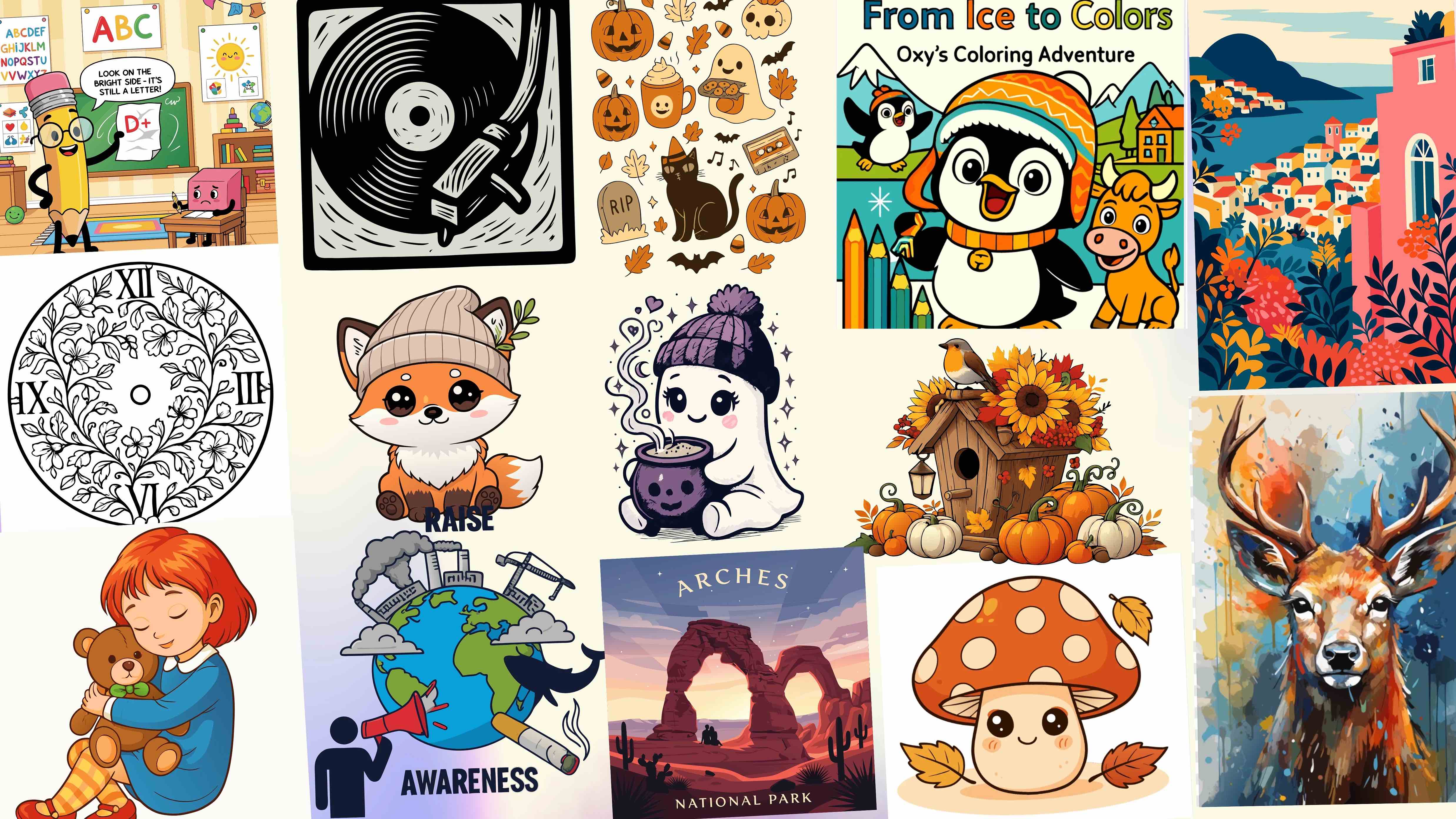
You can also explore our gallery to see examples of SVG quality, or check out our design categories for inspiration.